Sử dụng nâng cao
Lưu các Tab
Việc đóng các tab OnionShare mà bạn host lưu trữ sẽ làm hủy bỏ chúng, ngăn chặn việc sử dụng lại. Các trang web được lưu trữ liên tục bền vững là có sẵn trên cùng một địa chỉ ngay cả khi máy tính được chia sẻ chúng được khởi động lại.
Làm bất kỳ tab nào trở nên bền vững bằng cách chọn hộp "Luôn mở tab này khi OnionShare được khởi động" trước khi khởi động máy chủ của bạn.
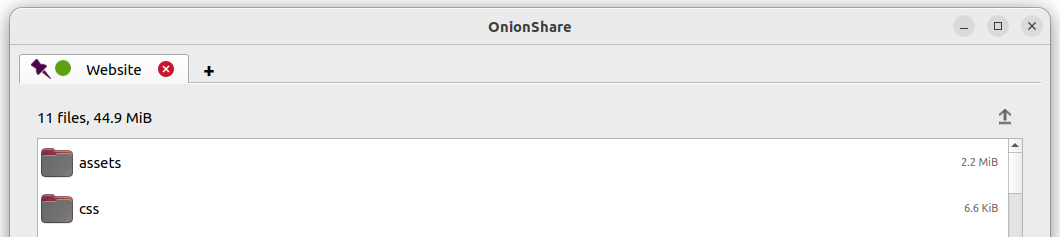
Khi mở OnionShare, các tab đã lưu của bạn từ phiên trước đó sẽ bắt đầu được mở. Sau đó, mỗi dịch vụ có thể được khởi chạy theo cách thủ công, và sẽ khả dụng trên cùng một địa chỉ OnionShare và được bảo vệ bởi cùng một khóa key riêng tư.
Nếu bạn lưu một tab, một bản sao của khoá key bí mật dịch vụ onion của nó sẽ được lưu trữ trên máy tính của bạn.
Tắt đi Khoá key riêng tư
Theo mặc định, tất cả các dịch vụ OnionShare đều được bảo vệ bằng một khóa key riêng tư mà Tor gọi đó là "xác thực ứng dụng khách".
The Tor Browser will ask you to enter your private key when you load an OnionShare service. If you want to allow the public to use your service, it's better to disable the private key altogether.
Để tắt khóa key riêng tư đi cho bất kỳ tab nào, hãy chọn hộp "Đây là một dịch vụ OnionShare công khai (tắt khóa key riêng tư)" trước khi khởi động máy chủ. Sau đó máy chủ sẽ ở chế độ công khai và không cần khóa key riêng tư để tải nó trong Trình duyệt Tor Browser.
Tiêu đề tùy chỉnh
Khi mọi người tải các dịch vụ OnionShare trong Trình duyệt Tor Browser, họ sẽ thấy tiêu đề mặc định cho từng loại dịch vụ. Ví dụ, tiêu đề mặc định cho các dịch vụ chat trò chuyện là "OnionShare Chat".
Nếu bạn chỉnh sửa cài đặt "Tiêu đề tùy chỉnh" trước khi khởi chạy máy chủ, bạn có thể thay đổi nó.
Thời gian dự kiến được lên lịch
OnionShare hỗ trợ lên lịch một cách chính xác khi nào một dịch vụ sẽ khởi chạy và dừng lại. Trước khi khởi động máy chủ, hãy nhấp vào "Hiển thị cài đặt nâng cao" trong tab của nó, sau đó chọn các hộp bên cạnh "Bắt đầu dịch vụ onion vào thời điểm đã lên lịch hẹn", "Dừng dịch vụ onion lại vào thời điểm đã lên lịch hẹn", hoặc cả hai, và đặt ngày giờ mong muốn tương ứng.
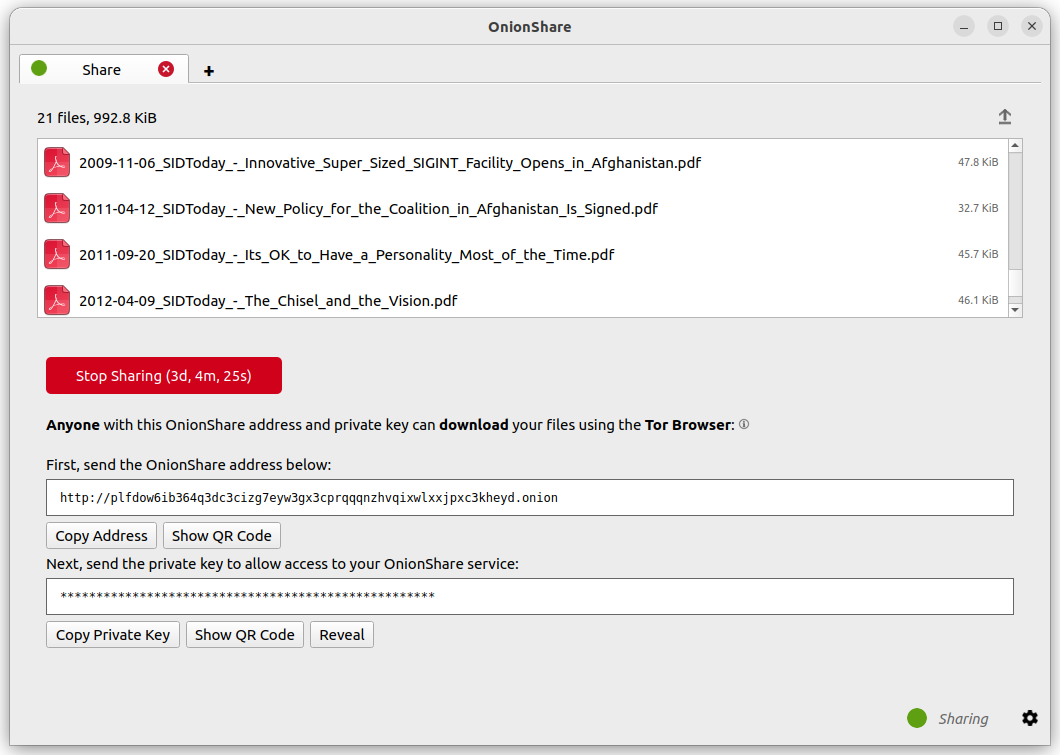
Services scheduled to start in the future display a countdown timer when the "Start sharing" button is clicked. Services scheduled to stop in the future display a countdown timer when started.
Việc lên lịch hẹn để một dịch vụ OnionShare tự động khởi chạy có thể được sử dụng làm công tắc khẩn cấp khi người sử dụng qua đời Dead man's switch. Điều này có nghĩa là dịch vụ của bạn sẽ được công khai vào một thời điểm nhất định trong tương lai nếu bạn không ở đó để ngăn chặn nó. Nếu không có gì xảy ra với bạn, bạn có thể hủy dịch vụ đi trước khi nó được lên lịch hẹn để bắt đầu.
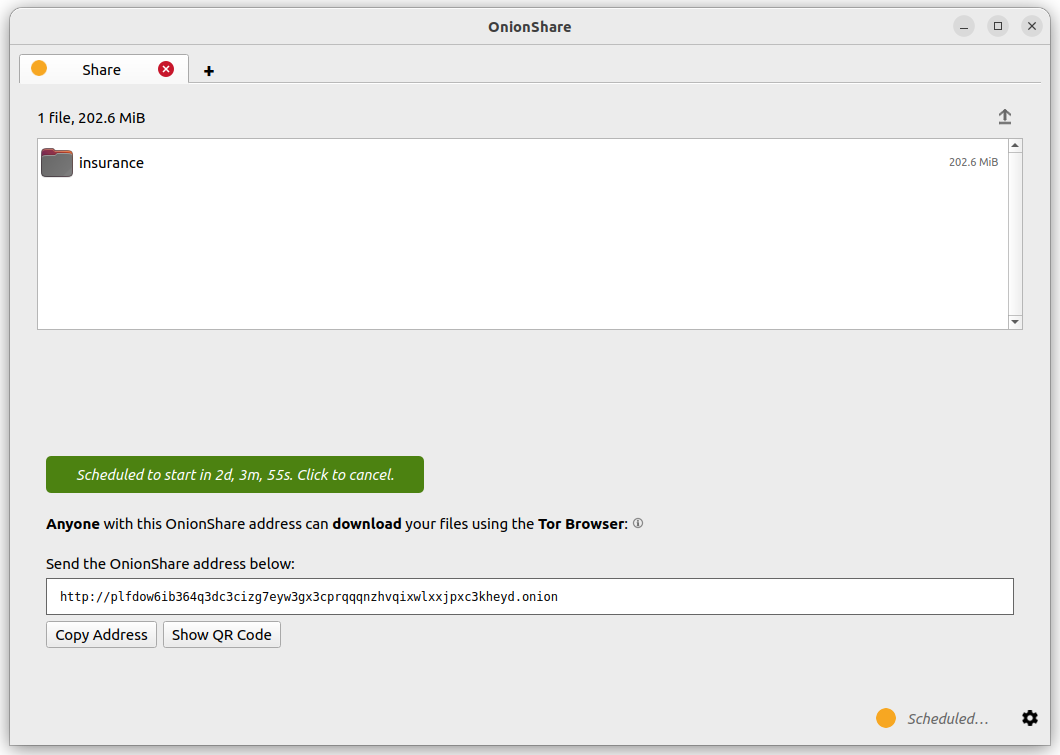
Việc lên lịch để một dịch vụ OnionShare tự động dừng giới hạn mức độ hiển thị của nó. Nếu bạn muốn chia sẻ thông tin bí mật hoặc điều gì đó sẽ trở nên lỗi thời, bạn có thể làm như vậy trong khoảng thời gian giới hạn đã lựa chọn.
Giao diện dòng lệnh Command
Ngoài giao diện đồ họa của nó, OnionShare còn có giao diện dòng lệnh Command.
Installing the CLI version
If you have installed the Snap, macOS or Windows package, you already have the CLI version installed.
Alternatively, you can install just the command-line version of OnionShare using pip3:
pip3 install --user onionshare-cli
Xin lưu ý rằng bạn cũng sẽ cần cài đặt gói tor. Trong macOS, hãy cài đặt nó với: brew install tor
Sau đó chạy nó như thế này:
onionshare-cli --help
Thông tin về cách cài đặt nó trên các hệ điều hành khác nhau có thể được tìm thấy trong tập tin CLI README trong kho lưu trữ Git.
Running the CLI from Snap
If you installed OnionShare using the Snap package, you can run onionshare.cli to access the command-line interface version.
Running the CLI from macOS
From Terminal, you can run /Applications/OnionShare.app/Contents/MacOS/onionshare-cli --help
Running the CLI from Windows
In the Windows installation, the executable onionshare-cli.exe is available.
Sử dụng
Duyệt tài liệu dòng lệnh Command bằng cách chạy onionshare --help:
$ onionshare-cli --help
╭───────────────────────────────────────────╮
│    *            ▄▄█████▄▄            *    │
│               ▄████▀▀▀████▄     *         │
│              ▀▀█▀       ▀██▄              │
│      *      ▄█▄          ▀██▄             │
│           ▄█████▄         ███        -+-  │
│             ███         ▀█████▀           │
│             ▀██▄          ▀█▀             │
│         *    ▀██▄       ▄█▄▄     *        │
│ *             ▀████▄▄▄████▀               │
│                 ▀▀█████▀▀                 │
│             -+-                     *     │
│   ▄▀▄               ▄▀▀ █                 │
│   █ █     ▀         ▀▄  █                 │
│   █ █ █▀▄ █ ▄▀▄ █▀▄  ▀▄ █▀▄ ▄▀▄ █▄▀ ▄█▄   │
│   ▀▄▀ █ █ █ ▀▄▀ █ █ ▄▄▀ █ █ ▀▄█ █   ▀▄▄   │
│                                           │
│                  v2.4.1                   │
│                                           │
│          https://onionshare.org/          │
╰───────────────────────────────────────────╯

usage: onionshare-cli [-h] [--receive] [--website] [--chat] [--local-only] [--connect-timeout SECONDS] [--config FILENAME] [--persistent FILENAME] [--title TITLE] [--public]
                      [--auto-start-timer SECONDS] [--auto-stop-timer SECONDS] [--no-autostop-sharing] [--log-filenames] [--qr] [--data-dir data_dir] [--webhook-url webhook_url] [--disable-text]
                      [--disable-files] [--disable_csp] [--custom_csp custom_csp] [-v]
                      [filename ...]

positional arguments:
  filename                  List of files or folders to share

optional arguments:
  -h, --help                Show this help message and exit
  --receive                 Receive files
  --website                 Publish website
  --chat                    Start chat server
  --local-only              Don't use Tor (only for development)
  --connect-timeout SECONDS
                            Give up connecting to Tor after a given amount of seconds (default: 120)
  --config FILENAME         Filename of custom global settings
  --persistent FILENAME     Filename of persistent session
  --title TITLE             Set a title
  --public                  Don't use a private key
  --auto-start-timer SECONDS
                            Start onion service at scheduled time (N seconds from now)
  --auto-stop-timer SECONDS
                            Stop onion service at scheduled time (N seconds from now)
  --no-autostop-sharing     Share files: Continue sharing after files have been sent (the default is to stop sharing)
  --log-filenames           Log file download activity to stdout
  --qr                      Display a QR code in the terminal for share links
  --data-dir data_dir       Receive files: Save files received to this directory
  --webhook-url webhook_url
                            Receive files: URL to receive webhook notifications
  --disable-text            Receive files: Disable receiving text messages
  --disable-files           Receive files: Disable receiving files
  --disable_csp             Publish website: Disable the default Content Security Policy header (allows your website to use third-party resources)
  --custom_csp custom_csp   Publish website: Set a custom Content Security Policy header
  -v, --verbose             Log OnionShare errors to stdout, and web errors to disk
Running the CLI as a systemd unit file
It is possible to automatically start OnionShare from the CLI using a systemd unit file.
You may find this particularly useful if you are operating in 'persistent' mode, and want to start the same onion service every time your machine starts.
To do this, you need to prepare some OnionShare json config first.
Here is the main OnionShare config. In this example, it's stored in /home/user/.config/onionshare/onionshare.json. You may need to adjust some of the settings, but if you already have OnionShare installed, it probably looks much like this already:
{
  "version": "2.6.2",
  "connection_type": "bundled",
  "control_port_address": "127.0.0.1",
  "control_port_port": 9051,
  "socks_address": "127.0.0.1",
  "socks_port": 9050,
  "socket_file_path": "/var/run/tor/control",
  "auth_type": "no_auth",
  "auth_password": "",
  "auto_connect": true,
  "use_autoupdate": true,
  "autoupdate_timestamp": null,
  "bridges_enabled": false,
  "bridges_type": "built-in",
  "bridges_builtin_pt": "obfs4",
  "bridges_moat": "",
  "bridges_custom": "",
  "bridges_builtin": {},
  "persistent_tabs": [
      "my-persistent-onion"
  ],
  "locale": "en",
  "theme": 0
}
Notice the 'persistent_tabs' section. We will now create a file at /home/user/.config/onionshare/persistent/my-persistent-onion.json, that looks like this:
{
  "onion": {
      "private_key": "UDIaZD8QgoXRP8JnAJ+pnlogQazfZ0wrfWJk5zPBGUBqg6+lozzjUJKTYWxwrxR33pDgJdTFtCUN1CX1FE22UQ==",
      "client_auth_priv_key": "RHJSN4VI3NKGDSIWK45CCWTLYOJHA6DQQRQXUID3FXMAILYXWVUQ",
      "client_auth_pub_key": "J4YLYAHS25UU3TZTE27H32RN3MCRGLR345U52XS2JNQ76CCHCRSQ"
  },
  "persistent": {
      "mode": "share",
      "enabled": true
  },
  "general": {
      "title": null,
      "public": false,
      "autostart_timer": 0,
      "autostop_timer": 0,
      "service_id": "niktadkcp6z7rym3r5o3j2hnmis53mno5ughvur357xo7jkjvmqrchid",
      "qr": false
  },
  "share": {
     "autostop_sharing": true,
     "filenames": [
       "/home/user/my-shared-file.txt"
     ]
  },
  "receive": {
     "data_dir": "/home/user/OnionShare",
     "webhook_url": null,
     "disable_text": false,
     "disable_files": false
  },
  "website": {
     "disable_csp": false,
     "custom_csp": null,
     "filenames": []
  },
  "chat": {}
}
Don't actually use this private key, service_id or client_auth keys! They are shown only as an example. Never share the private_key with anyone.
The easiest way to generate the onion address and private key is to first create a 'pinned' OnionShare tab in the desktop app and started the share for the first time. This will then have saved the persistent settings to your .config/onionshare/persistent/ folder with a random name. You can unpin that tab once you've generated it the first time. Or, you can leave it where it is, and use that persistent file in your systemd unit file below.
Now you can create a systemd unit file in /etc/systemd/system/onionshare-cli.service. Be sure to adjust the User and Group to your own user/group, as well as changes to any paths to the onionshare-cli binary or the paths to your JSON configs and shares.
The systemd unit file should look like this:
[Unit]
Description=OnionShare CLI
After=network.target

[Service]
ExecStart=/home/user/.local/bin/onionshare-cli --persistent /home/user/.config/onionshare/persistent/my-persistent-onion.json /home/user/my-shared-file.txt
Restart=on-failure
User=user
Group=user

[Install]
WantedBy=multi-user.target
Note that although /home/user/my-shared-file.txt was defined in the filenames section of the my-persistent-onion.json file, it's still necessary to specify it as the argument to the onionshare-cli command.
Be sure to run sudo systemctl daemon-reload after creating the unit file.
Now you can run sudo systemctl start onionshare-cli.service. If you have journalctl installed, you can run sudo journalctl -f -t onionshare-cli, and you should see some output of your service starting:
[...]
Feb 09 10:14:09 onionshare onionshare-cli[18852]: [6.5K blob data]
Feb 09 10:14:18 onionshare onionshare-cli[18852]: Compressing files.
Feb 09 10:14:18 onionshare onionshare-cli[18852]: Give this address and private key to the recipient:
Feb 09 10:14:18 onionshare onionshare-cli[18852]: http://niktadkcp6z7rym3r5o3j2hnmis53mno5ughvur357xo7jkjvmqrchid.onion
Feb 09 10:14:18 onionshare onionshare-cli[18852]: Private key: RHJSN4VI3NKGDSIWK45CCWTLYOJHA6DQQRQXUID3FXMAILYXWVUQ
Feb 09 10:14:18 onionshare onionshare-cli[18852]: Press Ctrl+C to stop the server
If you don't want your users to use a Private Key, set public to be true in the general settings of the my-persistent-onion.json file.
Các phím tắt bàn phím
Ứng dụng máy tính desktop OnionShare có chứa một số phím tắt bàn phím, để giúp thuận tiện và khả năng truy cập:
Ctrl T - New Tab
Ctrl X - Closes current tab
Và từ màn hình chọn chế độ chính:
Ctrl S - Share mode
Ctrl R - Receive mode
Ctrl W - Website mode
Ctrl C - Chat mode
Ctrl H - Settings tab
Configuration file parameters
OnionShare stores its settings in a JSON file. Both the CLI and the Desktop versions use this configuration file. The CLI also lets you specify a path to a custom configuration file with --config.
Below are the configuration file parameters and what they mean. If your configuration file has other parameters not listed here, they may be obsolete from older OnionShare versions.
Parameter |
Type |
Explanation |
|---|---|---|
version |
|
The version of OnionShare. You should not ever need to change this value. |
connection_type |
|
The way in which OnionShare connects to Tor. Valid options are 'bundled', 'automatic' (use Tor Browser's Tor connection), 'control_port' or 'socket_file'. Default: 'bundled' |
control_port_address |
|
The IP address of Tor's Control port, if |
control_port_port |
|
The port number of Tor's Control port, if |
socks_address |
|
The IP address of Tor's SOCKS proxy, if |
socks_port |
|
The port number of Tor's SOCKS proxy, if |
socket_file_path |
|
The path to Tor's socket file, if |
auth_type |
|
If access to Tor's control port requires a password, this can be set to 'password', otherwise 'no_auth'. Default: 'no_auth' |
auth_password |
|
If access to Tor's control port requires a password, and |
auto_connect |
|
Whether OnionShare should automatically connect to Tor when it starts. Default: False |
use_autoupdate |
|
Whether OnionShare should automatically check for updates (over Tor). This setting is only valid for MacOS or Windows installations. Default: True. |
autoupdate_timestamp |
|
The last time OnionShare checked for updates. Default: None |
bridges_enabled |
|
Whether to connect to Tor using bridges. Default: False |
bridges_type |
|
When |
bridges_builtin_pt |
|
When |
bridges_moat |
|
When |
bridges_custom |
|
When |
bridges_builtin |
|
When |
persistent_tabs |
|
If the user has defined any tabs as 'saved' (meaning that they are persistent each time OnionShare starts, and their onion address doesn't change), these are given a random identifier which gets listed here. The persistent onion is stored as a JSON file with the same name as this identifier, in a subfolder of the OnionShare configuration folder called 'persistent'. Default: [] |
locale |
|
The locale used in OnionShare. Default: None (which is the same as 'en'). For valid locale codes, see 'available_locales' in https://github.com/onionshare/onionshare/blob/main/cli/onionshare_cli/settings.py |
theme |
|
The theme for the OnionShare desktop app. Valid options are 0 (automatically detect the user's computer's light or dark theme), 1 (light) or 2 (dark). |
Configuration file parameters for persistent onions
As described above, each 'persistent' onion has parameters of its own which are stored in its own JSON file. The path to this file can be specified for the CLI tool with --persistent.
Here is an example persistent JSON configuration:
{
  "onion": {
      "private_key": "0HGxILDDwYhxAB2Zq8mM3Wu3MirBgK7Fw2/tVrTw1XraElH7MWbVn3lzKbcJEapVWz2TFjaoCAVN48hGqraiRg==",
      "client_auth_priv_key": "UT55HDBA5VSRWOUERMGOHEIBKZCMOOGZAFFNI54GDQFZ6CMCUGIQ",
      "client_auth_pub_key": "TPQCMCV26UEDMCWGZCWAWM4FOJSQKZZTVPC5TC3CAGMDWKV255OA"
  },
  "persistent": {
      "mode": "share",
      "enabled": true,
      "autostart_on_launch": false
  },
  "general": {
      "title": null,
      "public": false,
      "autostart_timer": false,
      "autostop_timer": false,
      "service_id": "hvsufvk2anyadehahfqiacy4wbrjt2atpnagk4itlkh4mdfsg6vhd5ad"
  },
  "share": {
      "autostop_sharing": true,
      "filenames": [
          "/home/user/git/onionshare/desktop/org.onionshare.OnionShare.svg"
      ],
      "log_filenames": false
  },
  "receive": {
      "data_dir": "/home/user/OnionShare",
      "webhook_url": null,
      "disable_text": false,
      "disable_files": false
  },
  "website": {
      "disable_csp": false,
      "custom_csp": null,
      "log_filenames": false,
      "filenames": []
  },
  "chat": {}
}
Below are the configuration file parameters for a persistent onion and what they mean, for each section in the JSON
onion
Parameter |
Type |
Explanation |
|---|---|---|
private_key |
|
Base64-encoded private key of the onion service |
client_auth_priv_key |
|
The private key when using Client Authentication. Send this to the user. |
client_auth_pub_key |
|
The public key when using Client Authentication. Used on OnionShare's side. |
persistent
Parameter |
Type |
Explanation |
|---|---|---|
mode |
|
The mode used by this persistent onion. Options are "share", "receive", "website" or "chat". |
enabled |
|
Whether persistence is enabled for this onion. When the persistent option is unchecked in the desktop, this entire JSON file is deleted. Default: true |
autostart_on_launch |
|
Whether to automatically start this persistent onion when OnionShare starts and once Tor is connected. Default: false |
general
Parameter |
Type |
Explanation |
|---|---|---|
title |
|
An optional custom title for displaying on the onion service. Default: null ("OnionShare" will be shown instead) |
public |
|
Whether the onion service can be accessed with or without a Private Key (Client Authentication). If true, no Private Key is required. |
autostart_timer |
|
Whether the onion service is configured to start at a specific time. The time can be set in the desktop app or specified in seconds with |
autostop_timer |
|
Whether the onion service is configured to stop at a specific time. The time can be set in the desktop app or specified in seconds with |
service_id |
|
The 32-character onion service URL, without the scheme and without the '.onion' suffix. |
The below are settings specific to the 'mode' specified in the persistent section above.
receive
Parameter |
Type |
Explanation |
|---|---|---|
data_dir |
|
The path where received files or text messages will be stored. Default: the 'OnionShare' folder of the user's home directory. |
webhook_url |
|
A webhook URL that OnionShare will POST to when it receives files or text messages. Default: null |
disable_text |
|
Whether to disable receiving text messages. Default: false |
disable_files |
|
Whether to disable receiving files. Default: false |
website
Parameter |
Type |
Explanation |
|---|---|---|
disable_csp |
|
If set to |
custom_csp |
|
A custom Content Security Policy header to send instead of the default. |
log_filenames |
|
Whether to log URL requests to stdout when using the CLI tool. Default: false |
filenames |
|
A list of files to share. Default: [] |
chat
There are currently no configurable settings for the Chat mode.